Saturday, November 01, 2008

Rescheduling tasks to the date you want

I was asked by someone recently to help them get their task to be scheduled on the date they wanted. One thing xProcess doesn't give you (except for overhead tasks whose size is defined by their duration rather than the estimated effort) is the ability to state when a task should start and stop. This is what the auto-scheduler does, based on your estimates, constraints (e.g. dependencies on other tasks or specific dates), your priorities and your available resources. So what if you have a task which is not being scheduled when you think it should?

Here's the checklist I gave my colleague:
  1. If the task being scheduled too soon you can add a constraint to the task by opening its editor (double-click) and selecting the “Constraints” where you can add the constraint (e.g. a dependency on another task or a “start after < date >” constraint).
  2. It may be though that the task is being scheduled too late and you want it scheduled sooner. A quick and easy way to achieve this is to make it “active” as then it will be scheduled immediately. (Just right-click on the task and select “Make active”. This can also be done from the web client too and it’s worth checking that the team always make the tasks they are working on active so that they are always scheduled immediately and not postponed when higher priority tasks are defined unless they make them inactive.)
  3. If it’s not currently being worked on (so not “active”), but you want it scheduled earlier (for example as soon as current active tasks are complete) then increase it's priority. Here's how:
  • If the task is not in the current sprint (assuming you're using the Scrum process) it will be scheduled after this sprint, so drag it into the current sprint from its current location
  • If it is in the current sprint but still not being scheduled soon enough, use the “Priorities” button on the tool bar, which takes you to the “priority groups” tab for the project. Maximize the window so you can see it all and select the current sprint. In the lower list you can see the relative priorities of all the tasks in the sprint. Change them so your task is near the top.
  • Check in the first tab of this window “All tasks in Schedule Order” that your task is high enough. (You will see for example all the active tasks near the top of this list.)
Finally one more thing to check. Make sure the task doesn't have constraints on it's start or end, for example a dependency on another task that won't complete for some time. This will also cause it to be scheduled later.

Monday, October 27, 2008

IT&T Conference Galway

Ireland seems to be a second home for me at present with a number of clients using my services for migrating to agile practices through partners Neueda Technologies. So it was a pleasure to be back in sunny Galway (in the gaps between the gales!) for this conference at GMIT. My tutorial was on "Agility: driving software projects for value and quality" and apart from giving an overview of agile methods, particularly Scrum, it looked at some of the key issues for scaling agile processes including design, continuous integration and team structures.

Monday, October 20, 2008

Project Home Page

xProcess allows you to define a wiki, blog or other site as your project's home page. If you can see this page from with your project in xProcess you are pointed at the default page. Why not change this to a site where you can add details of your own project and invite team members to contribute.

Some processes are configured to expect a Wiki site rather than a blog. These sites generally allow pages which do not yet exist to be referenced by url. In such processes a reference to a new page is generated when a new task or project is created, allowing the user to create the corresponding page, at the same time as and already linked to the task or project.

Thursday, October 09, 2008

New Scrum Process for v3

With the release of xProcess v3 drawing closer here's an overview of some of the improvements that are in the pipeline enabled by new features in the product. In this article we look at the steps to create Scrum projects and the backlog, then to prioritize them and allocate them to Sprints. In subsequent articles we'll consider how you can use the same features used in the Scrum process to tailor development processes for your organisation.

Here's the dialog for a new Scrum project. It shows the parameters used to set up the project including the location where Wiki pages may be created (including a home page for the project) and the Sprint duration which is used when Sprints (the timeboxes of the Scrum process) are created.

As the next screenshot shows there are now more patterns to choose from when you hit the "New" button in the project toolbar. We'll be looking at exactly what all these patterns are for in subsequent articles. For now let's just look at the "backlog items". The patterns for these are User Story, Technical Task, Defect Fix and Delivery. In fact you can see just this menu of items if you right-click on the "Backlog..." task (or a Sprint if you've created one) and select "New" there.

Tuesday, September 16, 2008

Defects kill Sprint Planning

Burning down user stories sprint by sprint at a nice constant velocity is what we hope to be seeing on agile projects. What happens though if there are defects in the work we've delivered and we have to start planning the defect fixing as well as the new work? How should this situation be approached?

Firstly, don't deliver defects! Easy to say but we know that all teams deliver defects at some points. If you start getting a lot of defects back though it's a pretty sure sign that you have a false velocity - you're reporting work as done when it isn't really. It simply hasn't been tested enough. So the second point is that you have to face reality about the velocity of your team. Get the testing done and automated before you deliver the next set of stories.

All well and good but what about planning the next few sprints? How do we plan reliably now when we are not sure how much defect fixing we're going to have to do along side the new user stories. Here's one approach that seems to work... 2 velocities!

The overall velocity of the team is how many "points" the team burns down in a sprint. We want to ensure this is pretty constant, always assuming that the team stays constant and we're not carrying over too much work in progress at sprint boundaries (see here for a previous discussion of that problem). The second important velocity though is "effective velocity" - the amount of new client-required work that is burned down per sprint. This excludes work on defects (which means the higher velocity reported in sprints when you delivered the defects is balanced) and work on refactoring and process improvement (necessary but not what the client is paying for). You can see the effective velocity sprint by sprint by creating a new folder each sprint to contain just the new work completed/targeted).

Giving the team visibility of these metrics is important so they can see the impact of defects and also appreciate improvements when the effective velocity is restired.

Monday, September 15, 2008

Running xProcess with a console

It seems I missed out a vital piece of information in the previous blog - how do you create a shortcut that runs xProcess with a console. Actually it's pretty simple: add "- console" to the target command. So on a Windows machine the Target field of the shortcut should look something like this...
"C:\Program Files\Ivis\xProcess 2\xProcess\xprocess.exe" -console

Friday, September 12, 2008

Reporting and exporting from xProcess 2.9

A project I've been working with recently has been needing to get reports and data out of xProcess to integrate with other management reports. This hasn't proved as easy as I would have hoped with the product's standard reports, custom reports through BIRT, exporting and other options failing to give us what we needed. I decided to do some more experimenting with "UI Actions", which use OGNL to navigate over the data. Turns out this is a pretty good option with writing the required scripts being quite straightforward. The hardest thing turned out to be actually getting the export file which was a bit more of a hassle. I'm told all this will be great in v3 but for now here's my solution.

First you need to create a new Action in your process, and set it applicable to "Task" (or whatever type of object you want to report on) and "UI Action to "true". The only other crucial bit in this stage is writing the OGNL Expression. My script is below so you can always paste that in, see what it does and then change it!

We wanted to extract a set of key attributes of tasks (like dates and size) and display them in a spreadsheet.The script produces a set of comma-separated values (csv format). Unfortunately v2.9 doesn't give you an easy way to save this in a file. Instead the script outputs the values to the console (so you have to start xProcess with a console window). Once the output has been produced you then have to cut and paste the data into a csv file -- yes that's the "clonky" bit. Still it doesn't take a moment and you then have the data in a spreadsheet where you can mess with it to your heart's content. Brill!

All I want now is v3 so I can get this sort of report through a nice clean user interface. Here's the script...
"-- Output to console action - summarises task information --",

#categoryName ='Importance',
#category = #this.getProcess().getCategoryTypeByName(#categoryName),

#output='\n\nTabular output for: ' + getName() +'\n'+
'Name,'+
'Parent Task,'+
'Start,'+
'End,'+
'Target End,'+
#categoryName + (#category==null ? ' (WARNING - no such category)' : '') +','+
'Size (points),'+
'Estimate (person-hours),'+
'Actual/Planned (person-hours),'+
'Actual to date (person-hours),'+
'Closed?,'+
'Assigned to' +
'\n',

"-- First define the different functions for Leaf and Parent tasks --",

#leafOutput = :[
#output = #output +
name +','+
parent.name +','+
start +','+
end50 +','+
(targetEnd==null ? '' : targetEnd) +','+
(#cat=getCategoryInType(#category), #cat ==null ? '' : #cat.label) +','+
size + ','+
estimateOfEffort/60.0 +','+
bookedTime/60.0 +','+
bookedTimeToDateIncludingConfirmedTimeToday/60.0 +','+
closed,
getCurrentManualAssignments().{#output = #output + ',' + person.label},
#output = #output + '\n'
],

#parentOutput = :[
#output = #output +
'REST OF ' + name +','+
(parent==null ? '' : parent.name) +','+
start +','+
end50 +','+
(targetEnd==null ? '' : targetEnd) +','+
(#cat=getCategoryInType(#deliveryCategory), #cat ==null ? '' : #cat.label) +','+
(topDown ? (#result = size - sizeRolledUpFromChildren, #result>0 ? #result : 0) : '') + ','+
(topDown ? (#effort = estimateOfEffort - estimateOfEffortRolledUpFromChildren, #effort>0 ? #effort/60.0 : 0) : '') + ','+
bookedTime/60.0 +','+
bookedTimeToDateIncludingConfirmedTimeToday/60.0 +','+
closed,
getCurrentManualAssignments().{#output = #output + ',' + person.label},
#output = #output + '\n'
],

"-- Then process all the tasks, including the one selected --",

#tasks = getAllTasks(),
#tasks.add(#this),
#tasks.{
#this.isDesignatedAsParent() ? #parentOutput(#this): #leafOutput(#this)
},
#$sysout.println(#output),

"-- Inform the user where the output is",

#$dialog.informUser('Output to console: ' + getName(), 'The result of this action has been sent to the console.\nCut and paste the output into a Spreadsheet and use Data->Text to Columns... to create the table.\n\n'+
'Note: If you do not have a visible console, close xProcess and restart it from a command line window, or run xProcess with a console by adding "- console" to the target command. (E.g. on a Windows machine the Target field of the shortcut should look something like:\n\n"C:\\Program Files\\Ivis\\xProcess 2\\xProcess\\xprocess.exe" -console')
Note: one of the columns this scripts outputs is a category value ("Importance"). You could use the same pattern to display other relevant categories - "Target Delivery" for example if this was a category defined in your data.

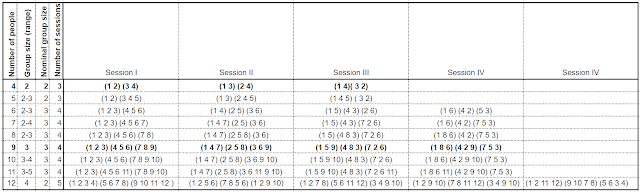
Breakout sessions that ensure everyone in the meeting meets everyone else

Lockdown finds us doing more and more in online meetings, whether it's business, training, parties or families. It also finds us spendin...